
Custom fields
Custom fields let you record additional information on OZmap elements, beyond the data that comes by default. They are created by the administrator and applied to the element types selected when they are created.
Access
In the left-hand menu, click Personalization and then Custom Fields.
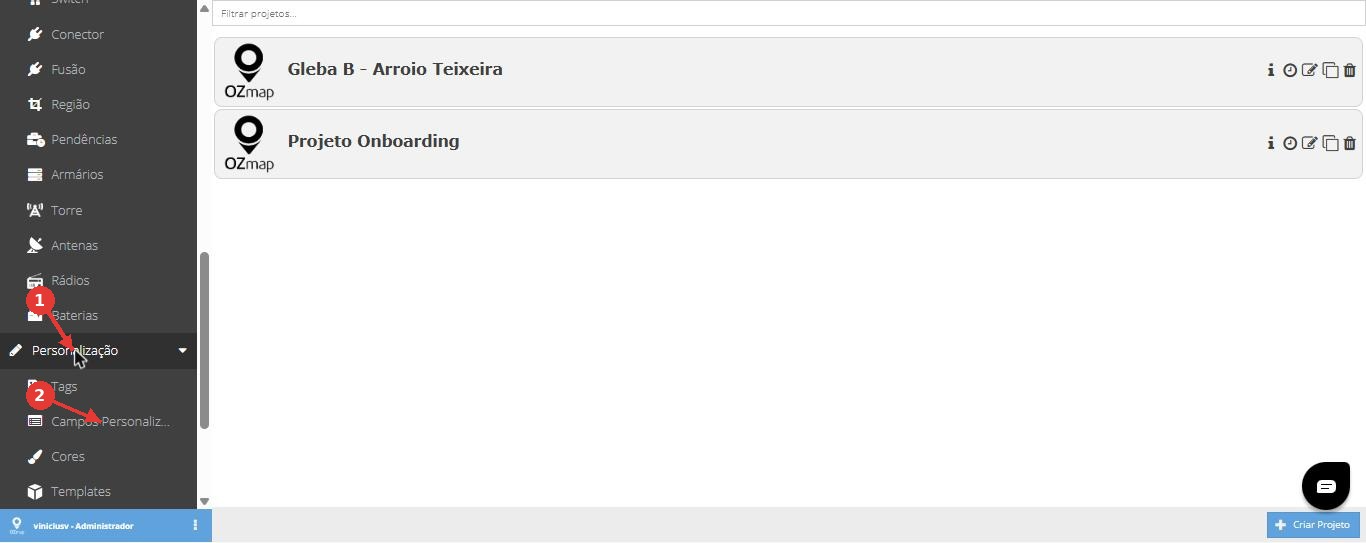
Figure 1: Personalization menu, with the Custom Fields option (1 and 2).
The screen lists the fields already created, with the columns Field, Type, Elements and Status.
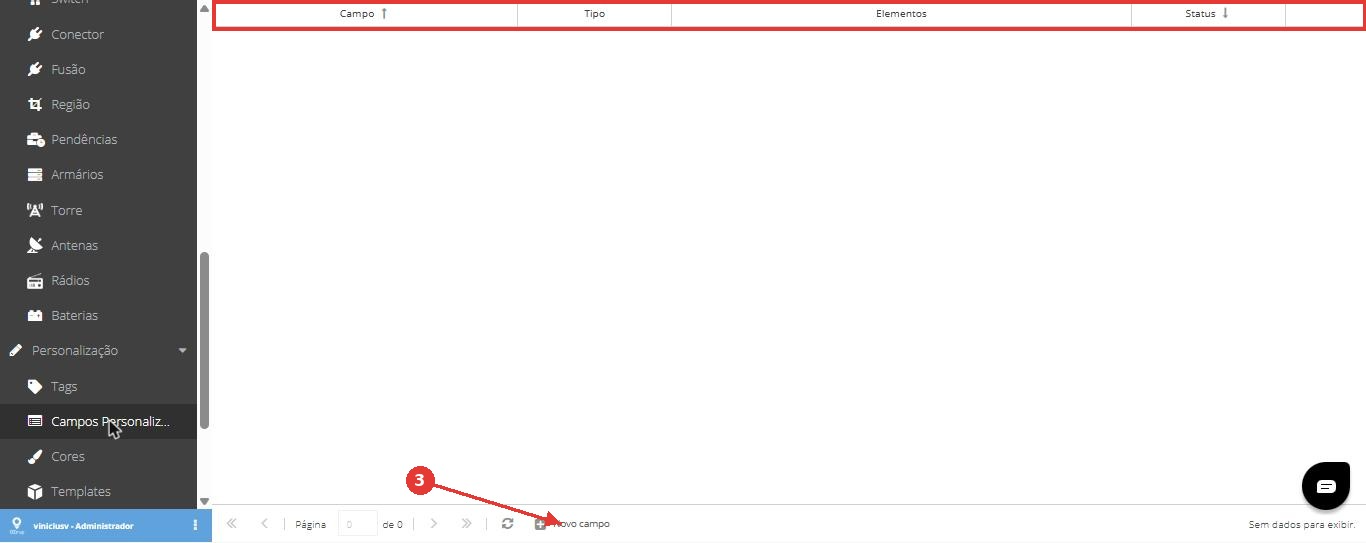
Figure 2: custom fields list. To create a new one, click New field (3).
How to create a field
Click New field.
In Name, type the field name.
In Description, explain what the field is for (optional).
In Type, choose one of the available types.
In Apply to elements, select the element types that will have this field. You can choose more than one.
Click Save.
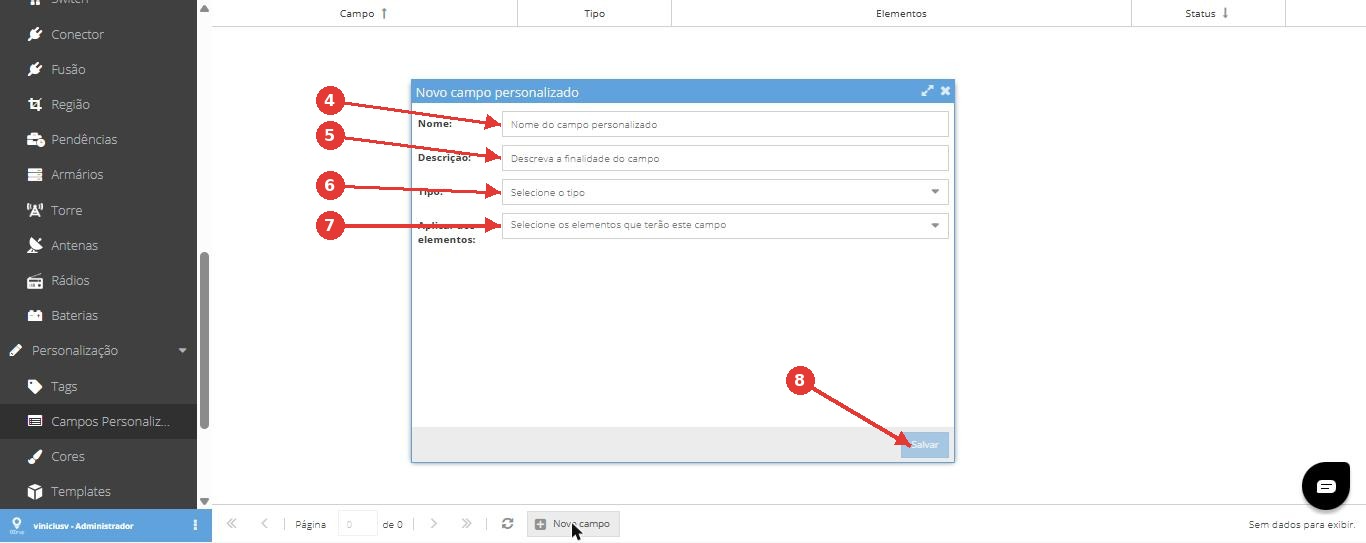
Figure 3: New custom field form. Name (4), Description (5), Type (6), Apply to elements (7) and Save button (8).
Field types
When you choose the Type, the following options appear:
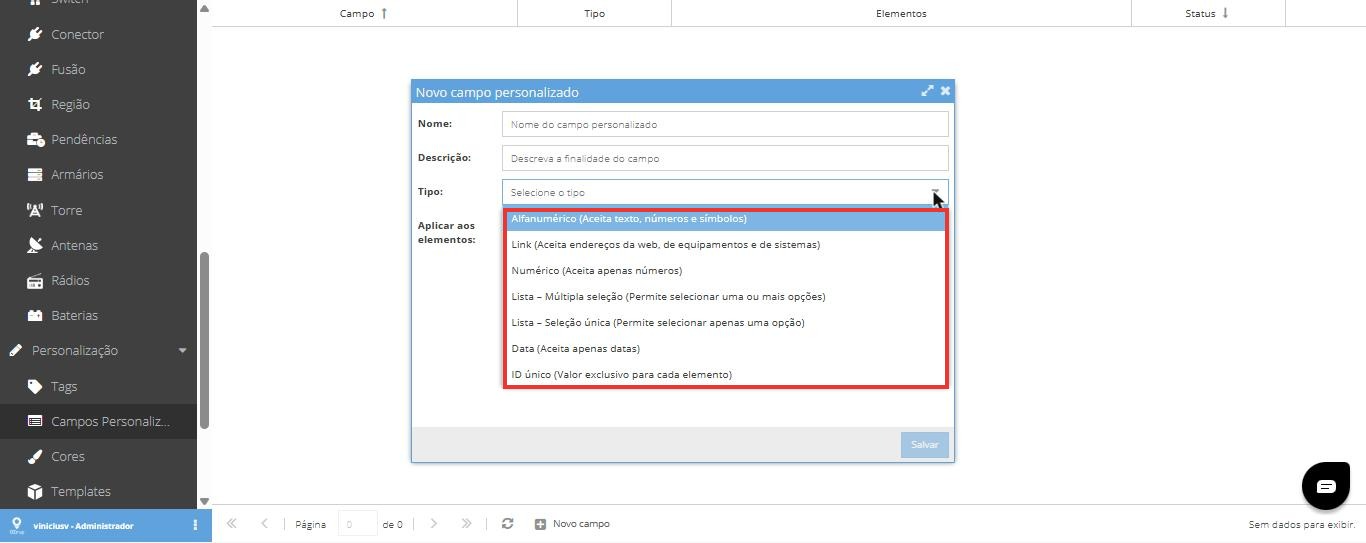
Figure 4: list of available field types.
Alphanumeric: accepts text, numbers and symbols. Each field allows up to 4,000 characters.
Link: accepts web addresses, equipment addresses and system addresses.
Numeric: accepts numbers only.
List, multiple selection: lets you choose one or more options from a list.
List, single selection: lets you choose only one option from a list.
Date: accepts dates only.
Unique ID: a value that is exclusive to each element. The check is global across the system, not per project, so the same value cannot be repeated on different elements, even if they belong to different projects.
Elements that can have the field
Apply to elements lists the system's element types, such as Box, Pole, Cable, Duct, Pass-through box, Condominium, POP and Tower, among others.
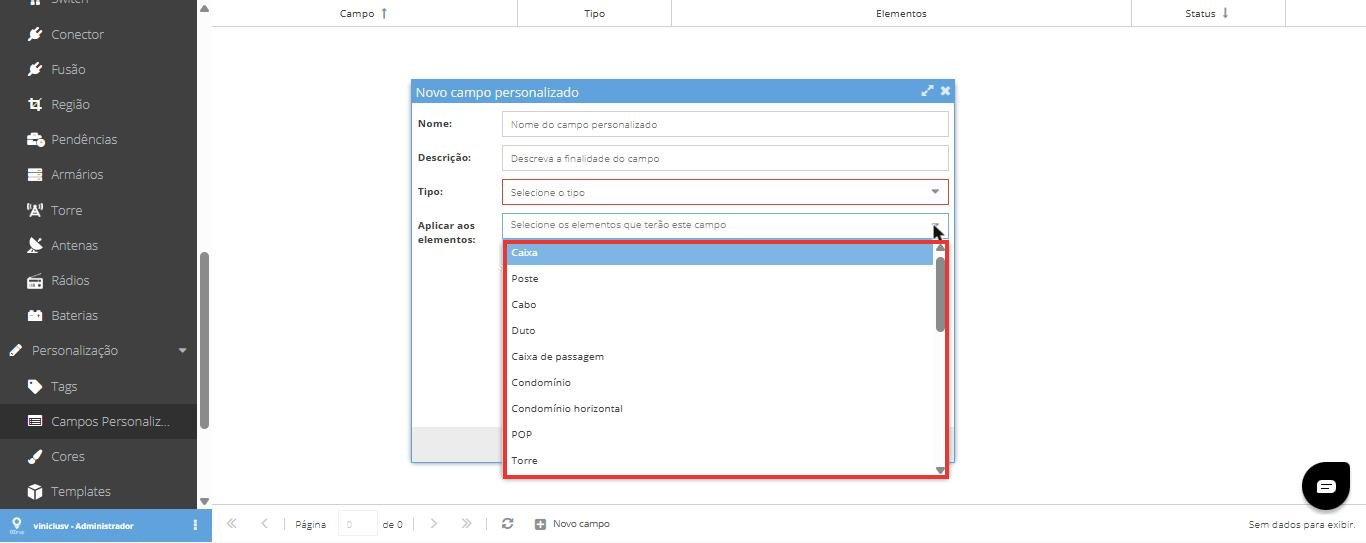
Figure 5: list of elements that can have the field.
Important rules
The type of a field cannot be changed after it is created. This rule prevents data integrity problems, for example converting text into a number. To change the type, create a new field and migrate the data, for example by import.
A field cannot be made mandatory. This rule was dropped so that records created before the field existed are not affected.
Archiving and deleting
A field cannot be deleted directly. You must archive it first.
Archive: the field stops appearing on existing elements and equipment and cannot be used in new records. The data is kept, and the field can be reactivated later.
Delete: this action is irreversible. The warning shows how many elements and equipment are within the field's reach. When you confirm, all associated data is permanently removed.
Filling in values
Values can be filled in on each element's details, by CSV spreadsheet import, and through the API. To fill in many elements at once, use the import or the daily reports.
Audit and reports
Creating, editing, archiving and deleting fields is recorded in the Audit and appears in the daily reports.
Permissions
Creating and deleting fields are separate permissions. By default, both are granted to the Administrator profile.
Known limitations
Editing custom fields is not yet available in the OZmob app. It will be implemented in a future version.