
Global Reports let you query the whole network at once, without opening project by project. You build the query across all projects you have access to, see the result in a table, and export the data.
Before you start
The rollout is being done in stages. To find out when the feature will be available to your customer, talk to your CS.
Data is not real time. It is updated every 60 minutes, and the time appears in "Updated at…".
When OZmap is updated, only the Administrator receives the new permissions. If another user cannot see the feature, ask the Administrator to grant them.
You only see the element types you already have access to in OZmap. If you cannot find a type, such as OLT or Customer, check your permissions with the Administrator.
Permissions
There are five permissions: View, Save, Share, Manage and Export. To save a report as Organization, the user also needs the Share permission.
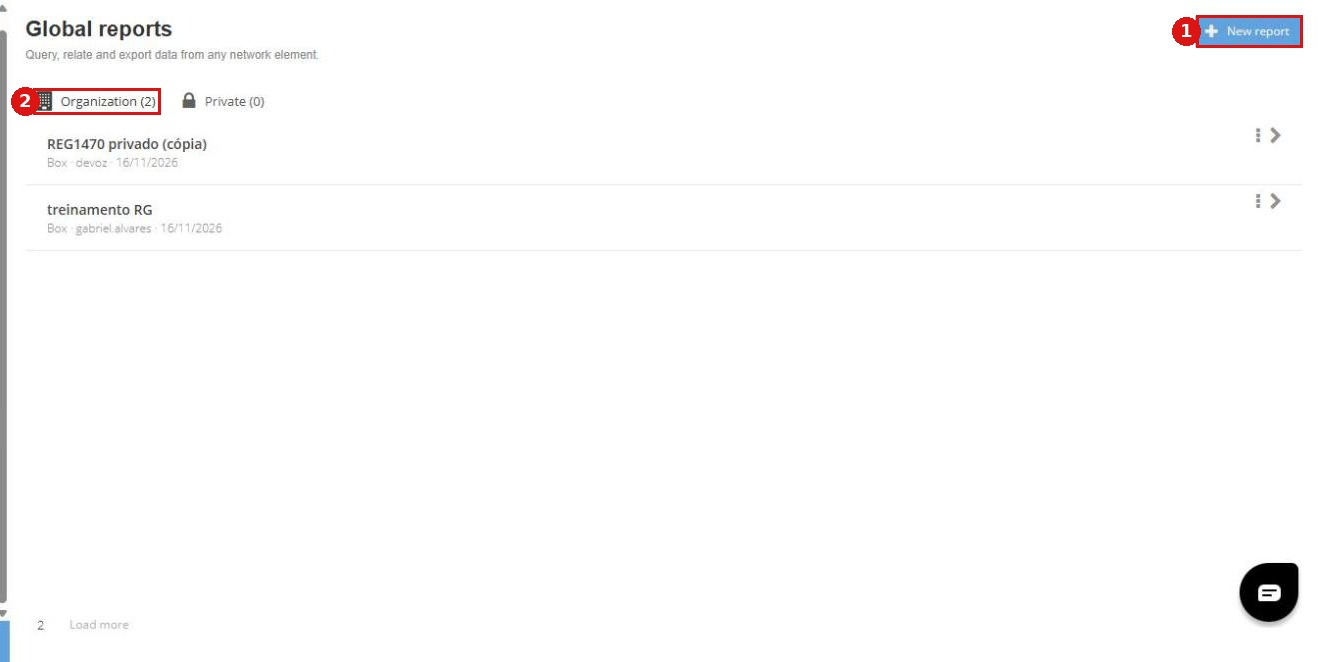
Figure 1: Global reports screen, with saved reports and the New report button.
Build the query
In the side menu, click Global reports, then New report.
In Main element, choose the element you want to query.
In Related element, choose the element related to the main one, and the relationship mode.
In Filters, add the filters you need. Filters are combined with AND: all of them must be met.
Click Run query.
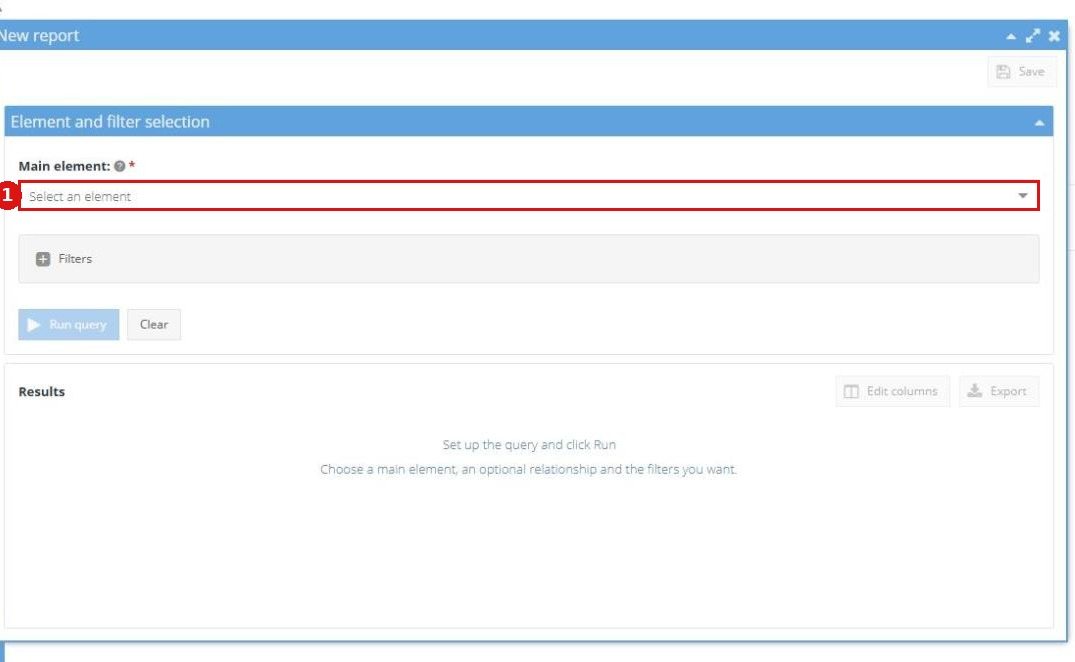
Figure 2: new report form.
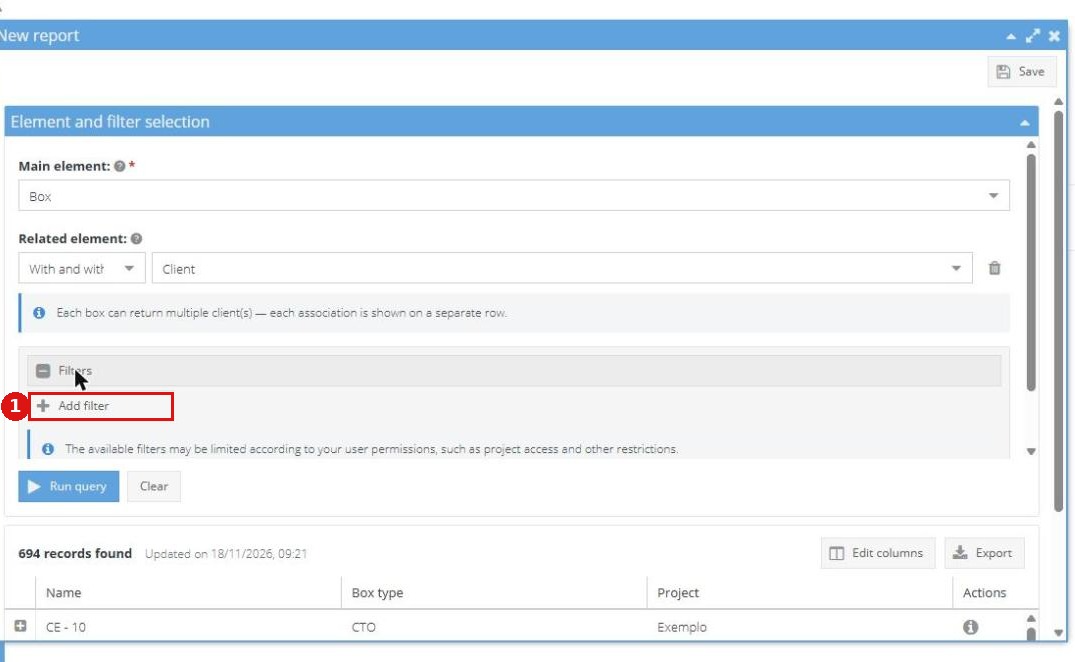
Figure 3: filters area.
Relationship modes
With and without: returns the main elements, with or without the related element.
Only with: returns only the main elements that have the related element. Example: boxes with a customer.
Only without: returns only the main elements that do not have the related element. Example: poles without cable.
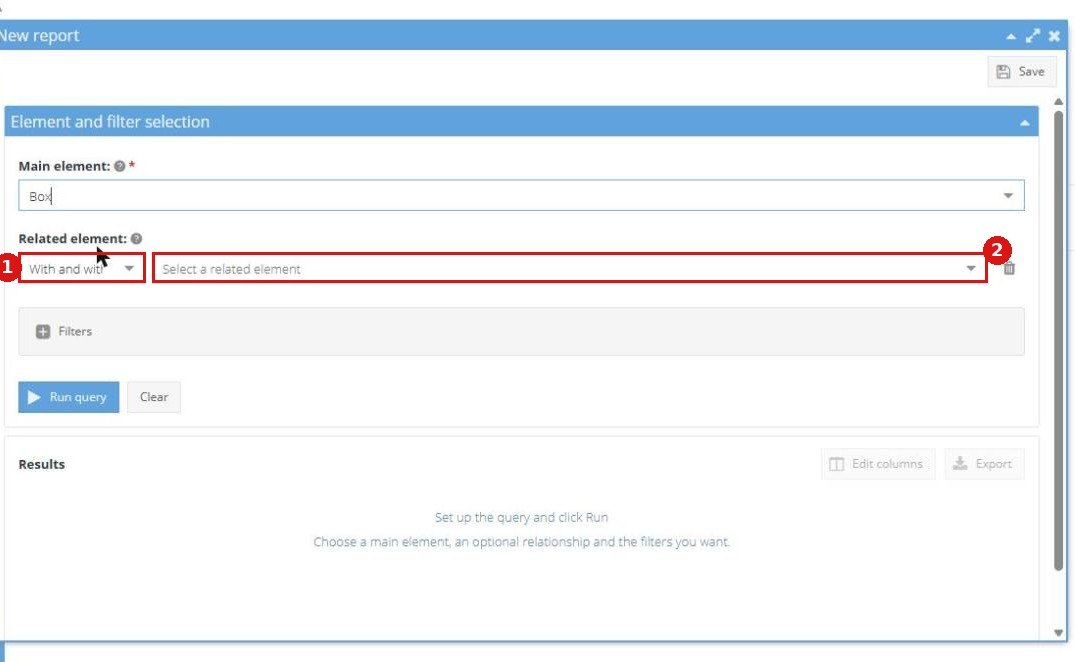
Figure 4: related element and relationship mode.
View the result
The result appears in a table, with the time of the last update. The screen is read-only: you cannot edit elements from the result.
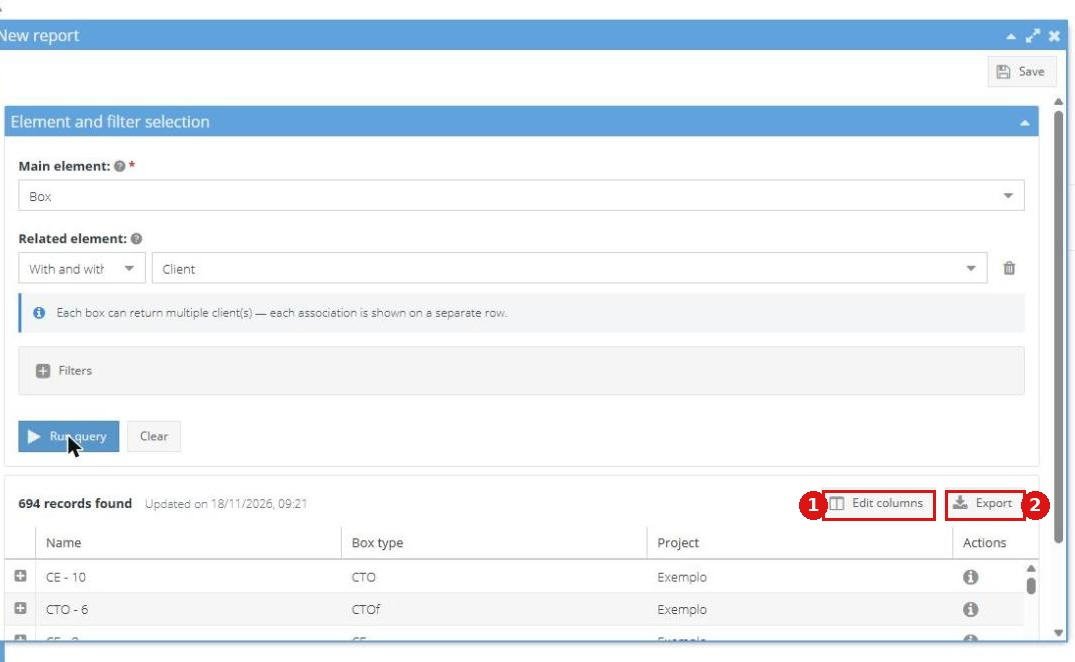
Figure 5: query result.
Export
The export runs in the background. The file appears under "Recent exports" and expires after a while.
CSV: up to 1 million rows.
XLSX: up to 400 thousand rows.
KML: up to 100 thousand elements. Only enabled for elements that are on the map.
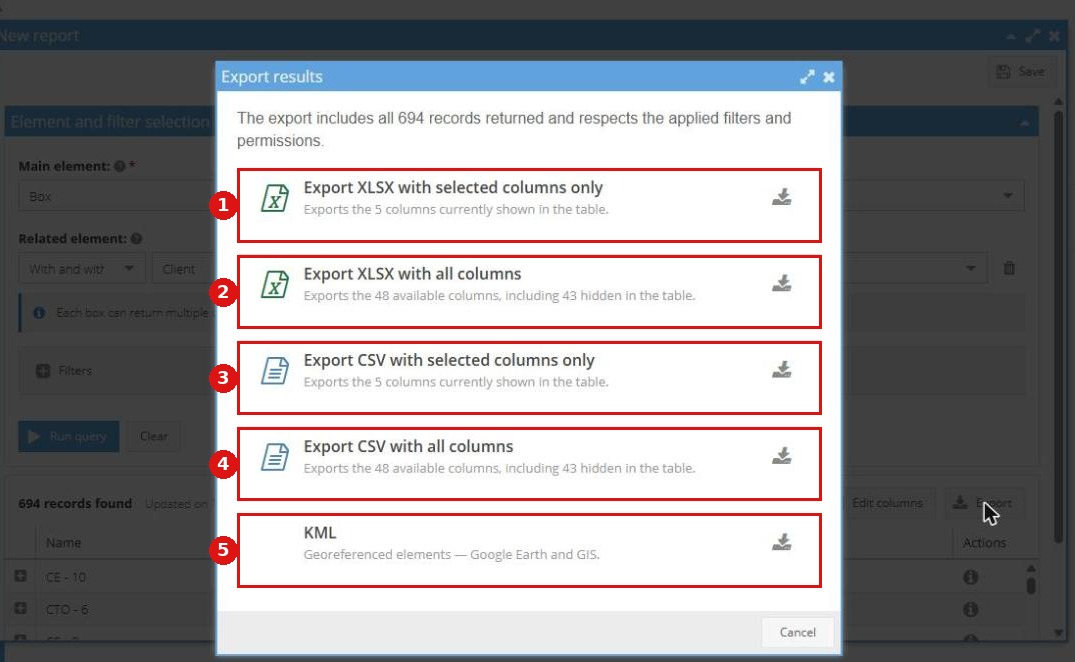
Figure 6: export options.
Save and manage reports
When saving, choose Private or Organization. Organization requires the Share permission.
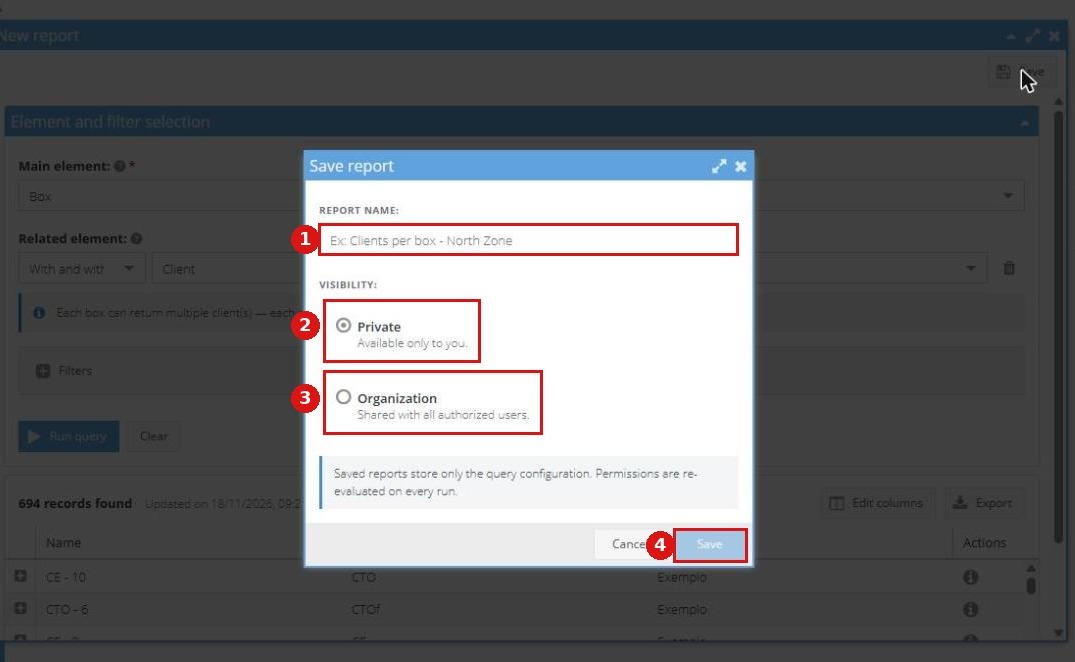
Figure 7: save report window.
Clone: creates a copy of the report.
Take over: transfers the report to you.
Delete: permanently removes the report for all users. It cannot be undone.