
Network Documentation lets you mark which connections have already been checked in the registry. With it, you track the documented percentage of each element and on the dashboard. The mark records the registry check; it does not verify what is in the field.
Before you start
This feature is part of an additional module. To learn more, talk to your CS.
You need the Connections Table of the box, condominium or POP open.
Permissions
There are two independent permissions: Mark documentation, which marks one row, and Mark documentation in bulk, which marks several at once. Without them, the user sees the column but cannot click.
Mark a connection
Open the Connections Table of the box, condominium or POP.
In the Documentation column, mark the row of the checked connection.
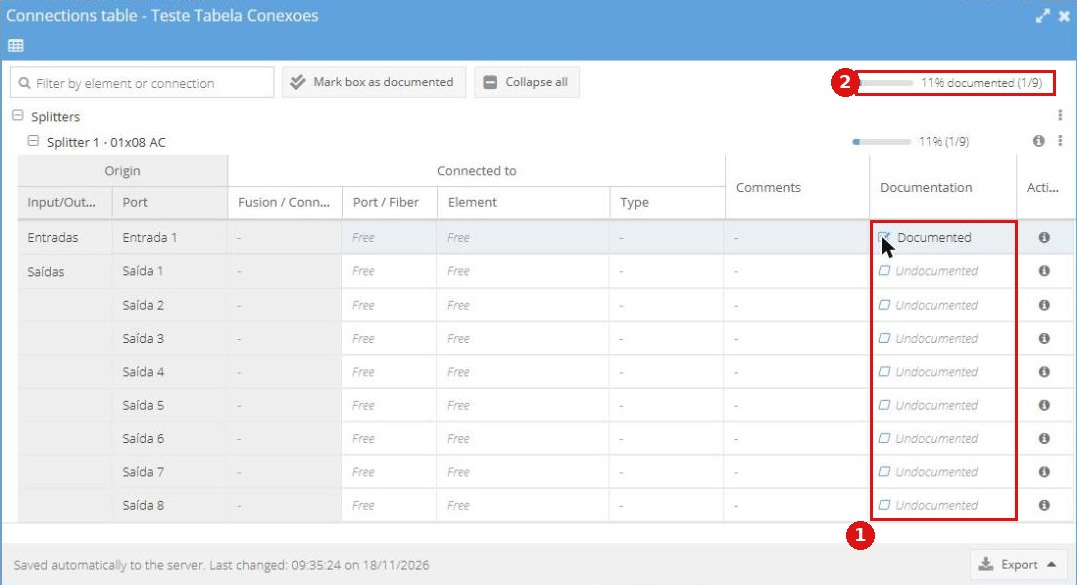
Figure 1: connection marked as documented. (1) Documentation column. (2) Documented percentage.
Marking one side of a link also marks the other side, if it is on the same element. Between different elements, the mark does not propagate.
Mark the whole box
Use Mark box as documented to mark all fibers and ports of the element at once. The bulk operation asks for confirmation.
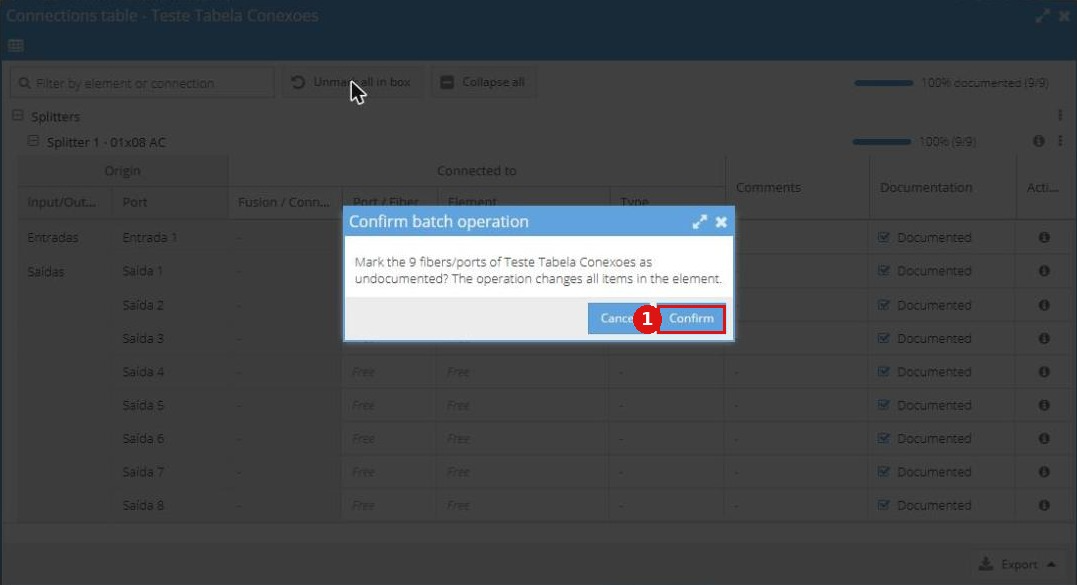
Figure 2: bulk confirmation dialog.
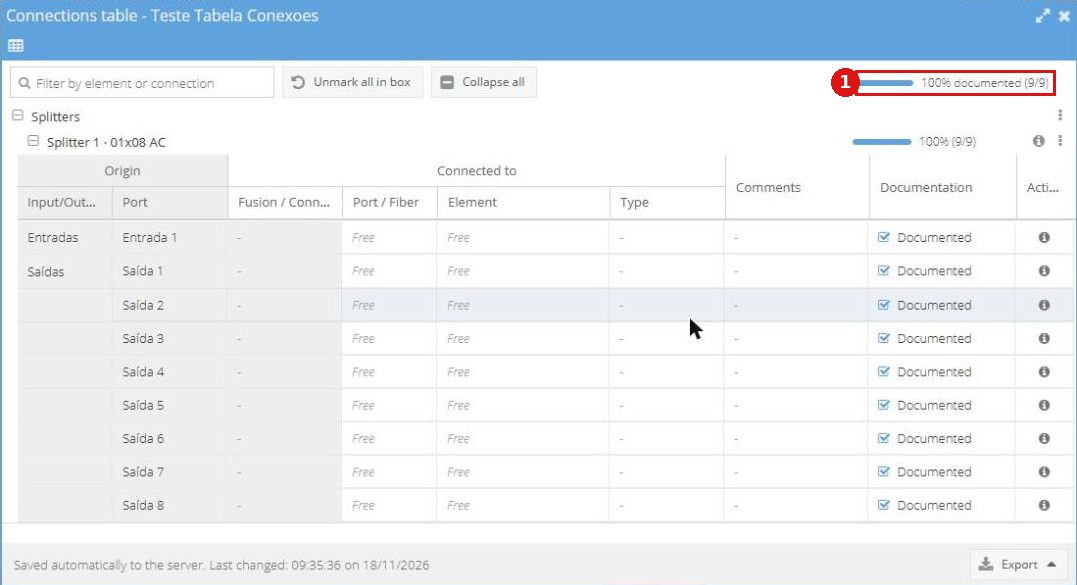
Figure 3: box with all connections documented. (1) Documented percentage.
Saving is automatic, with no save button. The footer shows "Saved automatically".
How the percentage is calculated
The percentage only reaches 100% when all connections are marked.
Battery, antenna and the drop fiber are not counted in the percentage. The drop is documented through the splitter output.
On the dashboard, each element carries the same weight in the calculation.
Changes made outside the table, such as in the diagram, in OZmob or through import, can take up to about 5 minutes to appear in the percentage.
Dashboard
The "Documentation Status" section of the dashboard is updated once a day. The history starts on the day the module was turned on.
Audit
Every mark is recorded in the Audit.