
How to Open
To open your CSV files in Excel, first open a new blank worksheet. Then go to the “Data” tab and select the “From Text/CSV” option.
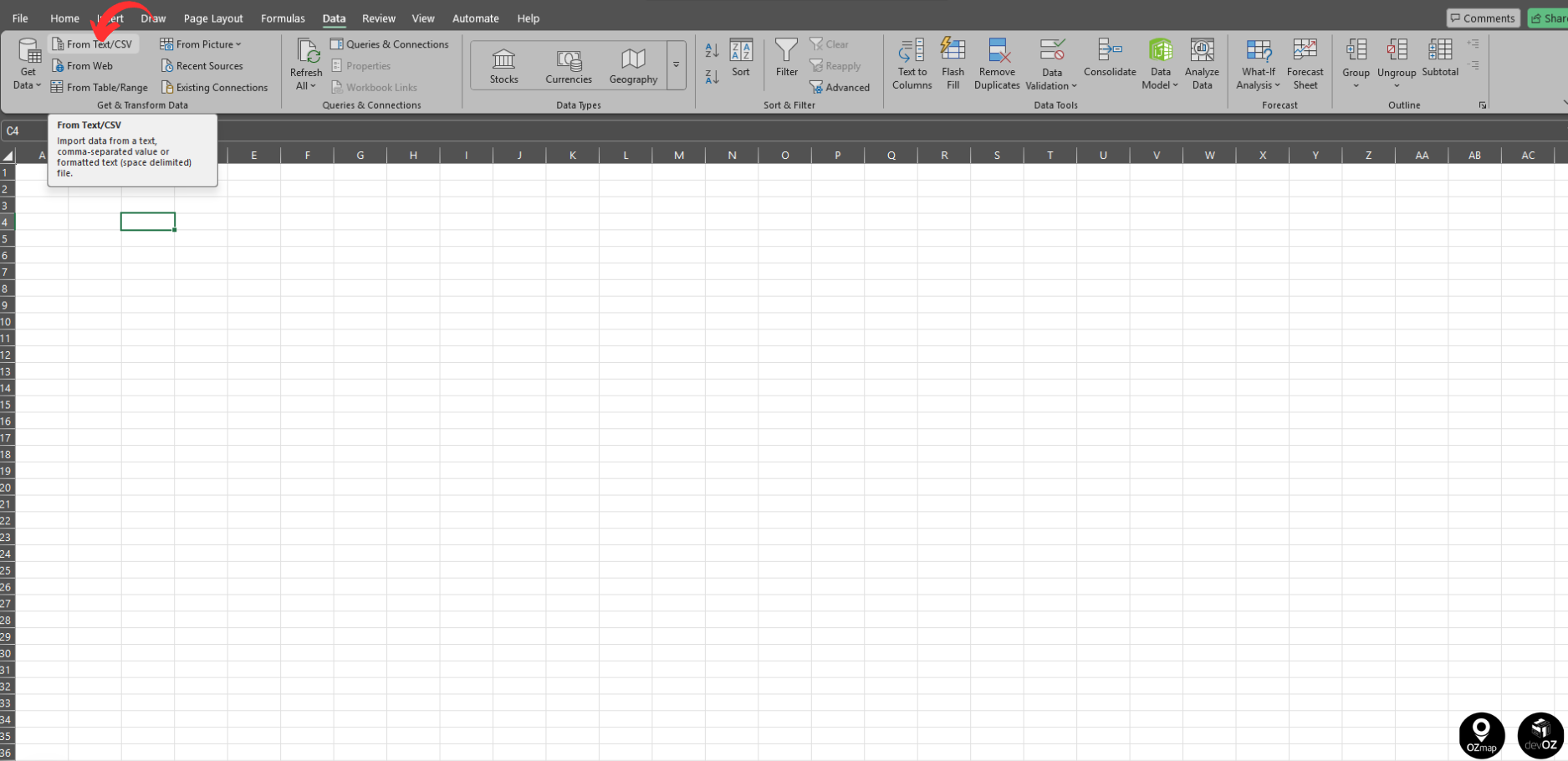
Next, a window will open allowing you to select the file to be used.
After selecting the file and clicking “Import,” the Text Import Wizard will open. Set the “File Origin,” “Delimiter,” and “Data Type Detection” column options as shown in the image below.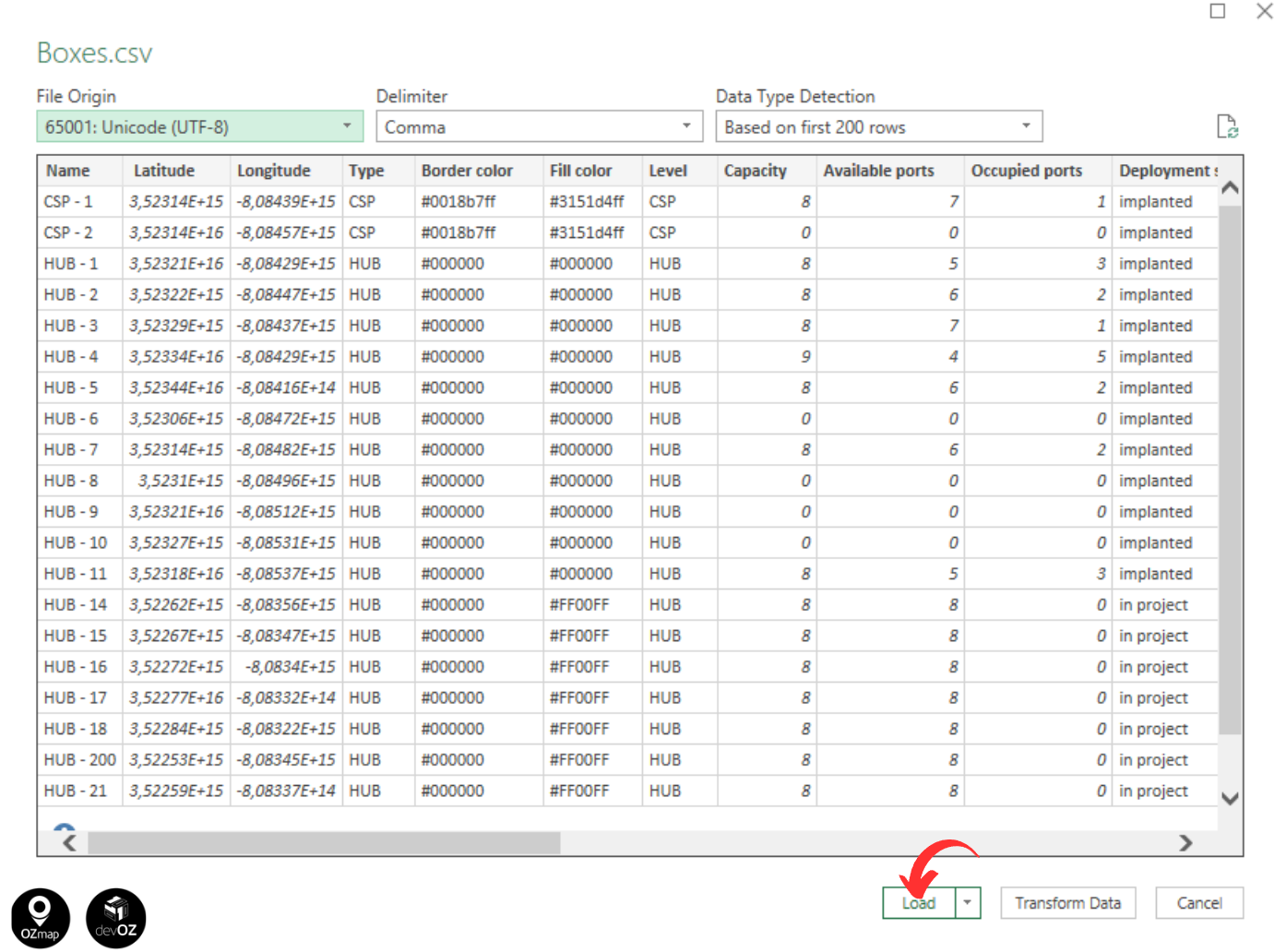
You can confirm whether the settings are correct in the data preview pane at the bottom of the window. If the columns are not properly separated, you can change the delimiter until they are displayed correctly.
Finally, click “Load.” This will open your file correctly formatted and ready to be edited.
More information about CSV file settings in Excel can be found here.
Saving the File
After editing the file for import into OZmap, you must save it as a CSV file. To do this in Excel, click “File” at the top of the screen and select “Save As.” Choose the CSV (Comma delimited) format and click “Save.” Then confirm the action in the next window.
Close the file and open it again to verify. If the file is separated by semicolons (;) instead of commas, change the list separator or the decimal symbol in your computer’s regional settings so they are not the same character. To do this, follow these steps:
Click Start, point to Settings, and then click Control Panel;
Double-click Regional Settings or Regional Options. Click the Number (or Numbers) tab;
In the Decimal symbol list, choose a character that is not the same as the list separator. Alternatively, in the List separator list, choose a character that is not the same as the decimal symbol;
Click OK;
If you are prompted to restart your computer, restart it.