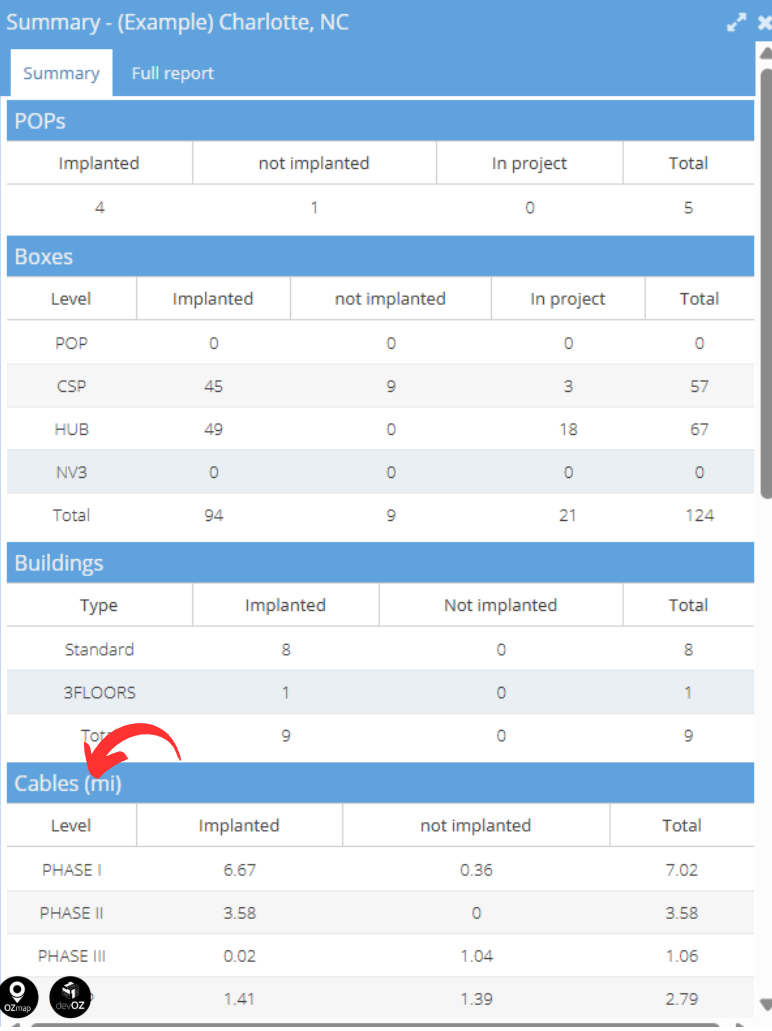
To find out the cable length, you must generate an area report. In the cable window, there will be a column showing the length of each cable on the plan, including elevation (3D).
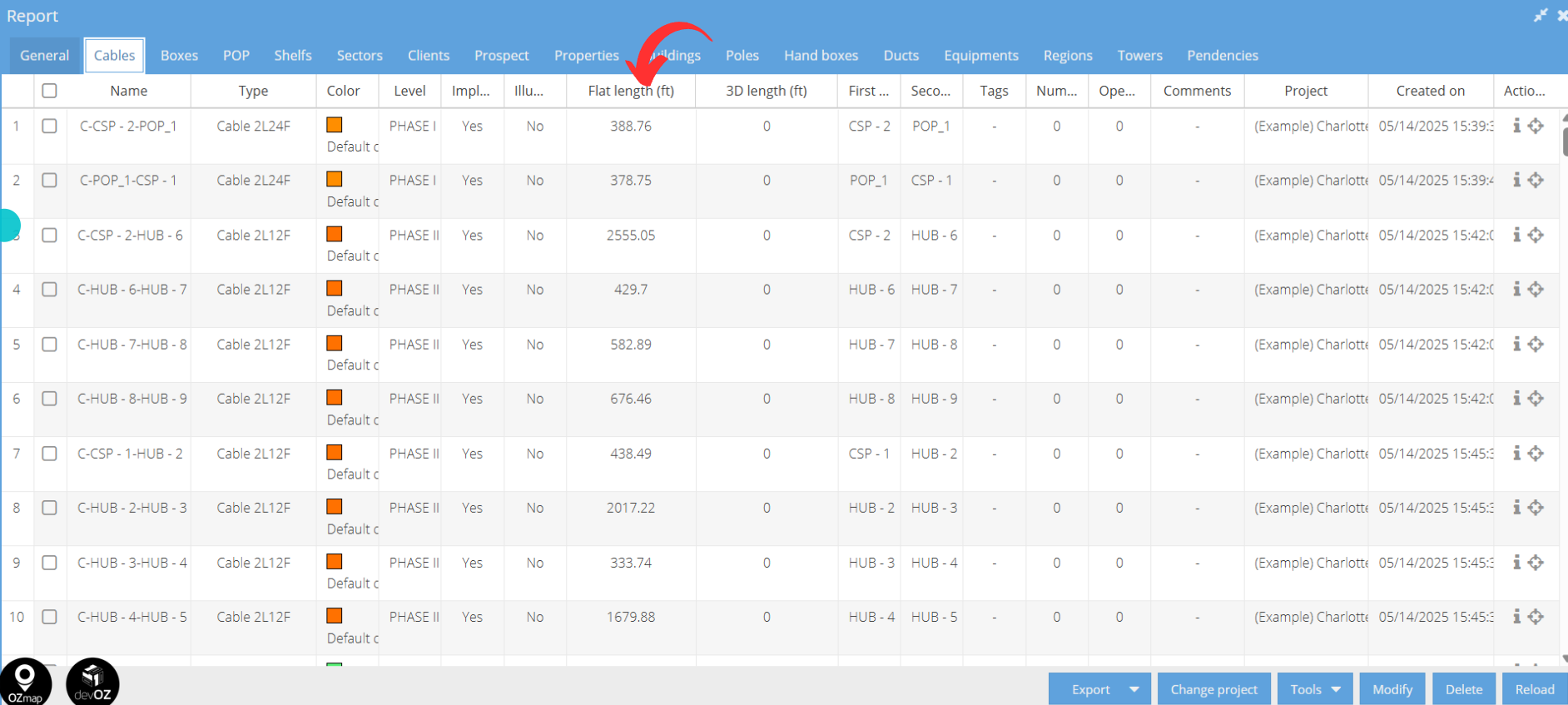
To access the 3D length, you need to enter a Google API key with access to the “Elevation” API. This key must be added in the system settings, in the “API” field. Learn how to create yours by clicking here.
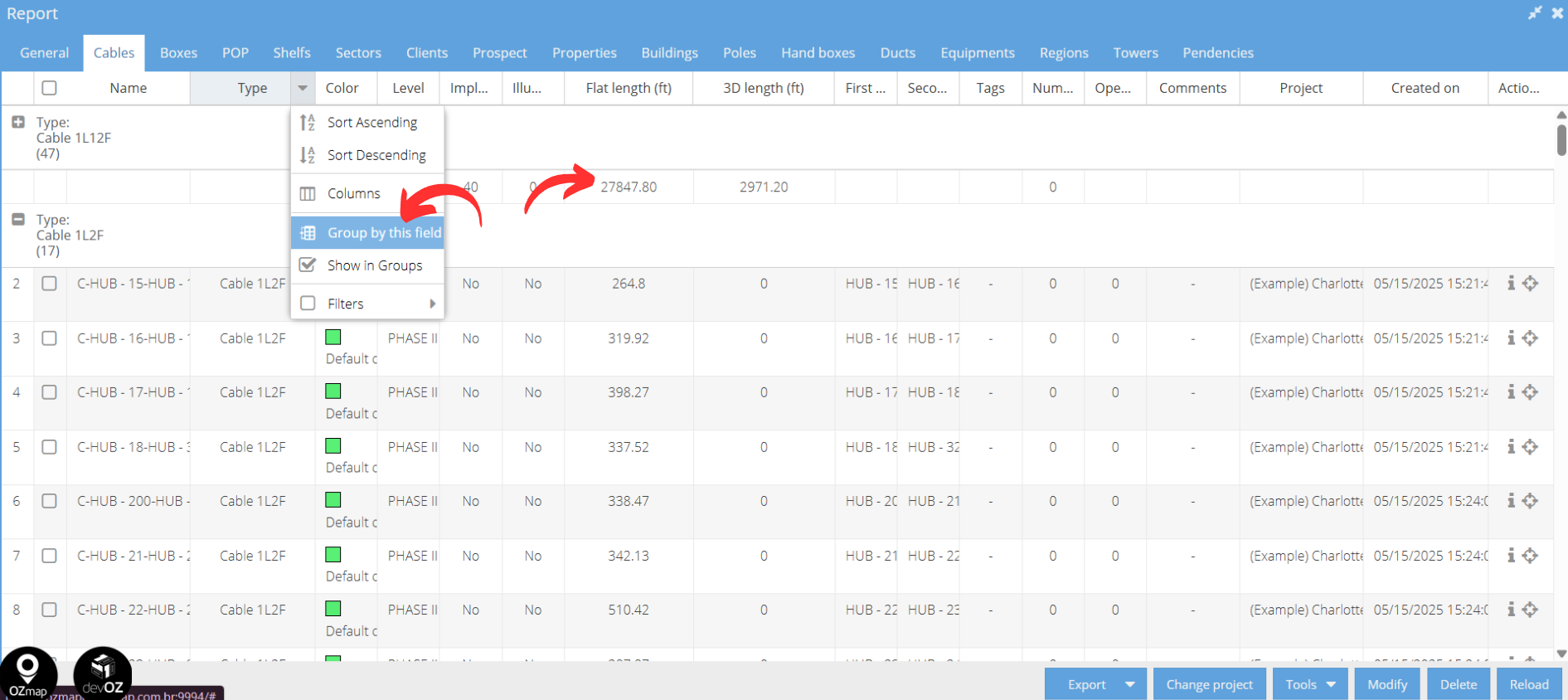
Another way to view this information is by grouping your cables by type. To do this, click on “Type”, then select “Group by this field”. Your cables will then be grouped by type, allowing you to see the quantity of cables in each group.
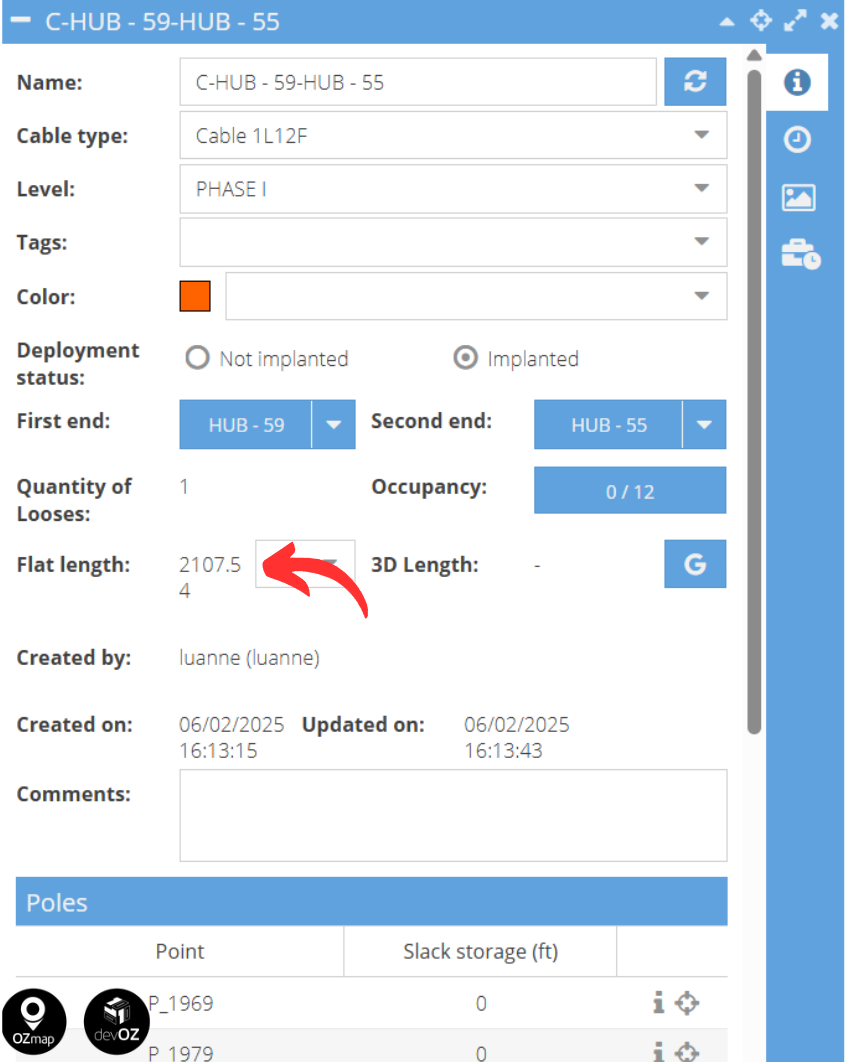
You can also view the length of each cable individually in its properties:
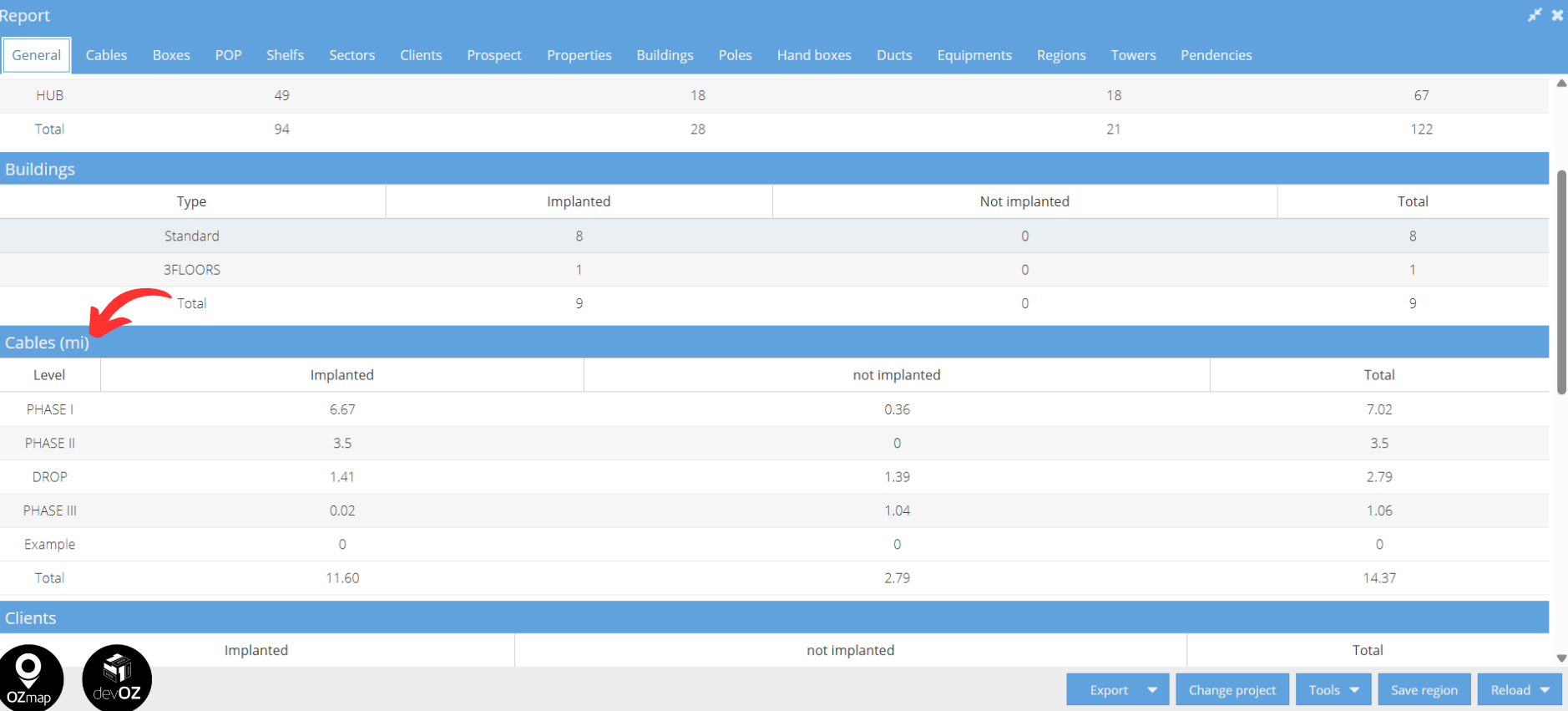
Now, if you want to view the total cable length used across the entire network, go to the “General” tab of the area report, under the “Cables” section. There, you can see the total length (in km), as well as the length of implanted and not implanted cables.
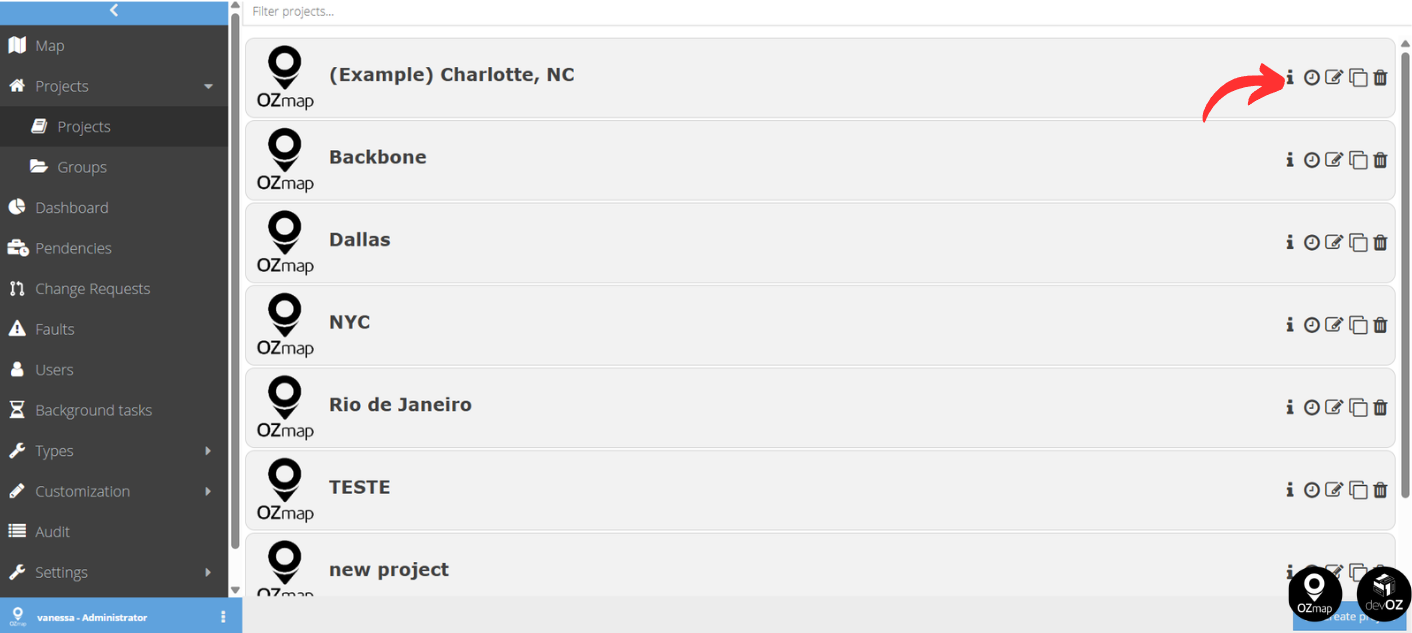
Another way to view this information is in the “Projects” window. Click the information icon on the right side of the screen, next to the project name: